Monday, August 18, 2008

WinRAR - The ultimate in RAR and ZIP compression

imageWinRAR is the only official software to support creation of RAR files. RAR files have always been known for their excellent compression ratio. I have long given up other compression softwares like WinZip in favor of WinRAR. The main thing that attracts me is its simple and quick interface. The interface resembles to the classic look of the good old WinZip. WinRAR supports compression and decompression of RAR and ZIP files. Apart from this, it also supports decompression of CAB, ARJ, LZH, ACE, 7-ZIP, TAR, GZip, UUE, BZ2, JAR, ISO and Z formats. It also supports certain combinations of compression such as TAR.GZ and TAR.BZ2. Now getting to the size of the software, it one of the very few compression softwares left that can fit into a floppy disk. The size is just under 1MB.

Core features of WinRAR:

  • Shell Integration - Like most other standard compression softwares, it too supports Shell Integration. It can be associated with all the supported formats. It can also show options on the context menus of any selected file (or folder) to compress it or compress and e-mail it.
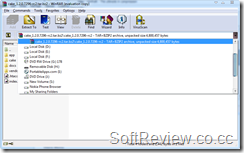
  • imageFile List - The file list is a very powerful section of the software. Unlike the file list of other software, the file list within WinRAR can be used to browse the contents of Hard Disk, CD/DVD Drive etc., and not just the compressed archives. In fact, the address bar is very similar to the Windows Explorer's address bar and shows a list of major folders and drive. Owing to the various vulnerabilities of Windows Explorer, I often end up using WinRAR to browse files. You has have a shortcut command Ctrl+D to quickly open up the Drive selection menu.

  • Tight Integration with Explorer - The integration does not end with file associations. You can drag a file within an archive to a folder in Explorer, and WinRAR will automatically extract the file to the specific location. Also, if you choose copy from the interface of WinRAR and paste in a Windows Explorer window, WinRAR extracts the file to the location.

  • Convert archive to Executable (SFX) - For ZIP and RAR files, it supports a feature to convert a given archive into a self extracting EXE file. This means, after converting to EXE, it can be decompressed even on a system with no decompression softwares available. The SFX module is quiet powerful and you have the ability to create a miniature "Installation" for distributing applications.

  • Recovery Records - WinRAR can store self-recovering records within RAR files so that they can be restored once the archive gets corrupted. There are different levels in Recovery Record percentage. The more, the better.

  • Password Protection - Like all other compression softwares, it too supports password protection. In other softwares, even if you provide a password, the file list is not encrypted. You can easily open the file and look at the file list. You could also add your own file into the encrypted archive without knowing the password. In WinRAR, you can enable complete encryption, by which, the file list will also be encrypted.

Overall, this is a handy little utility that can help you open a vast range of compressed files. There i only one problem know with WinRAR. That is speed. The compression speed of RAR is very less compared to other formats such as ZIP. Anyway, no harm in having it installed.

Further Reading


Technorati : , , ,
Del.icio.us : , , ,
Zooomr : , , ,
Flickr : , , ,

Sunday, August 17, 2008

Opera - The fastest browser on earth

My all time favorite browser, this is probably my most used browser. I don't exactly remember when, but I think I first started using this browser from 2000. From the start, Opera has always been popular for its High Speed, Extreme Customization, Tabbed structure, Skinnability, Standard Compliance, Security, etc. Till date, Opera's implementation of tabbed browsing is the best compared to all other available browsers in the market. Also, it is the oldest browser to support session management. Lately however, Opera's browser share has been declining after the advent of Firefox. The latest version is 9.51. Some of the features supported are: Tabbed Browsing, Pop-up blocking, Fraud Protection, Download Manager, Bittorent Client, Search Bar, Web Feed Aggregator, Full-fledged built-in e-mail client (Opera Mail), IRC chat, Speed Dial, Opera Widgets, and more...

Tabbed Structure

As I have mentioned earlier, Opera is one of the earliest browser to implement tabbed browsing. In fact, if you were to compare the tabbed browsing of the various browsers available, you will find Opera's tab implementation to be far superior to others. In the current structure, you can drag the tab around quiet easily. In fact, you can also drag a tab from one window to another. Accidentally closed a tab? No worries, the basket to the right of the tab-bar holds a list of closed tabs. You can choose the tab and it will re-open.

Session Management

This is also one of the oldest features of Opera. If you close Opera, the next time you open Opera, all the tabs and windows that were open when closing Opera, will be restored. For many other browsers, session management is a very new feature. In Opera, when tabs are restored, all the pages are loaded from the cache. So, I can open Opera when a connection is not available, and it will still show the old pages. Crash recovery is also a part of session management in Opera. Opera keeps saving the session every few minutes. If Opera happens to cash, the next time you open Opera, you can resume from were you left.

Privacy and Security

Opera supports all the encryption standard to access secure websites. Main among these being SSL 3 and TLS. Security information, if available, is shown on the address bar itself.

Opera has the least amount of security flaws compared to all other browser.s Also, when a security issue is found, Opera is quick enough to release a new patch.

Standards Support

Opera is one of the first browser to support Cascading Style Sheets (CSS). Today, Opera supports many web standards, including CSS 2.1, HTML 4.01, XHTML 1.1, XHTML Basic, XHTML Mobile Profile, XHTML+Voice, WML 2.0, XSLT, XPath, XSL-FO, ECMAScript 3 (JavaScript), DOM 2, XMLHttpRequest, HTTP 1.1, Unicode, SVG 1.1 Basic, SVG 1.1 Tiny, GIF89a, JPEG, and full support for PNG, including alpha transparency.

Also, Opera is the first Windows browser to pass the Acid2 web standards test.

Opera Mail

Opera is the only major browser that comes integrated with an email client within the interface itself. The mail client will co-exist with all the other tabs you are browsing. It supports both POP and IMAP. At first appearance, it might look like a very weak e-mail client. But it is one of the best e-mail client I have ever seen. In Opera, there is no concept of folders. Instead, we have the concept of labels. This might be a bit confusing for new users. But believe me, it is quiet easy and powerful once you start using it. You can add multiple labels for a mail. And when you click on a label, it filters out all mails with that label. My favorite feature only found in Opera is that it can auto-detect mailing-list and create separate views for it. Also, the messages can be show threaded (the mails and its responses are grouped together).

The search within the mail client is very powerful. It is implemented as a "Search as you type". So, the search results are almost instantly available.

There is a small short-coming here. Opera Mail does not support composing HTML mails. In simple words, you cannot compose formatted (bold, italic, different size etc.) mails.

Lots More Left....

Due to shortage of time, I am stopping here. Opera has lots and lots of features. It is best if you download and try it out. For a starter it might not go well. But believe me, after some use, you wont feel like using any other browsers.

Speaking of all these, I still have to mention some shortcomings. One major problem with Opera is that it does not support extensions. Extensions can be found in Firefox and Internet Explorer (Add-ons). But in Opera, this is not possible. Plug-ins written for Netscape are supported by Opera. But, they cannot be a replacement for extensions as they cannot interfere with the interface. Also, owing to its high standard compliance, it does not support certain web pages that don't follow proper standards.

Related Links


Technorati : , , , ,
Del.icio.us : , , , ,
Zooomr : , , , ,
Flickr : , , , ,

Saturday, August 16, 2008

DivX Player for mobile

I love my Nokia N73 very much. I know the model is now a bit old. But I simply love it. The best thing I love about Symbian based mobile is that it supports a vast range of software. At times, I like viewing video clippings or video songs on my mobile. Of course, I could use the internal Video Player. But, in my opinion, it sucks. So, I went out searching for different options to view video on my mobile. My preference was a player that support XviD or DivX formats. Of course, there is the ever popular Smart Movie Player. But, I wanted to search for something free. That's when I met the DivX Player.


After installing the player, I found it's interface to be quiet similar to that of Smart Movie player. Now to test the player, I encoded some video clipping into DivX and XviD formatted AVIs. It supported both formats. The DivX player is available for Windows Mobile 5 and Later, as well as, Symbian OS 9.0 (S60 3rd edition, UIQ 3.0) and Later.


Player interface is straight-forward. On start-up, you get a list of videos available on your mobile. If you want to update the list, choose Options->Refresh list. Pressing the joystick opens the selected video. By default, the video is shown in a small screen. But you can choose Full screen mode from the Options. After choosing Full screen, you will have to tilt the mobile to view the movie.


The joystick controls are also very simple. Left and Right for Rewind and Forward, Up and Down for Volume Up and Down. In full-screen mode, as the screen tilts into landscape mode, the joystick control also changes accordingly.


There are a few options available in Settings like changing the Audio/Video Sync. Overall, I find this a great software for your mobile device. So, if you have a supporting mobile. Just go and download the software. After all, its a free software and comes directly from the official DivX people.


Related Links


Technorati : , , ,

Del.icio.us : , , ,

Zooomr : , , ,

Flickr : , , ,

Tuesday, August 12, 2008

Process Explorer - The ultimate task manager replacement....

zrclip_003p187bab1c.png

Process Explorer is a process monitoring software originally created by Mark Russinovich. His company, Sysinternals, has always been known to make great softwares to monitor the internal details of a system. Lots of system utilities are available at SysInternals.com . Later, the company was taken over by Microsoft making it part of Microsoft TechNet. I have been a long time user of this software and must admit that it is quiet powerful. If, like me, you love to keep trying out softwares and keep lots of software running at time, you should install Process Explorer. What distinguishes it from Window's Task Manager is that it can show process in hierarchical order of opening and show icons of the process running.

Process Information

Apart from the hierarchical display and icons, it provides lots of extra information. The Description and Company Name of the running process is available in the main screen itself. If you want a much detailed view of the process, simply choose View->Show Lower Pane. This should bring up the detailed pane containing the DLLs accessed by the process and the Handles (File, Directory, Registry, Port, Thread, etc.) open by the process.

Well, the above mentioned informations are just a fraction of the information available. To get a more detailed info about the process, simply double-click or right-click and choose Properties.


The Process Properties page has lots of Tabs:


  • The default tab (which is Image tab) contains basic informations such as the EXE file associated with the process, Command Line Parameters, User running the process, Parent ID, Started time etc.
  • The Performance tab contains various Performance figures related to CPU (Priority, Kernel Time etc.), Virtual Memory (Private Bytes, Virtual Size etc.), Physical Memory (Memory Priority, Working Set etc.), I/O (I/O Priority, Reads etc.), and Handles.
  • Performance Graph page contains graph related to the Process CPU Usage, Private Bytes History (Usually RAM access) and I/O Bytes History (Usually Hard Disk access).
  • The Threads tab shows a list of tab associated with the process and details about the thread. You also have the option to suspend or kill a thread (Be careful, if you suspend or kill an important thread of the process, the program may become very unstable).
  • TCP/IP tab lists all the Ports opened by the process and all the active connections.
  • Security tab contains information regarding which users have what privilege on the process.
  • The Environment tab lists all the environment variables that was set when the process was started.

Search Function

A search option is available to search all open processes and corresponding DLLs or Handles for a specific string. This can come in very handy if you find difficult to delete a file. If you are not able to delete a DLL or EXE, it means that the process is locked in use by some other process. The search feature helps you find which process is locking the process.

Users Menu

A simple menu showing all the Users logged into the system. On Windows Server systems, this can come in handy as several people might have connected to the system using Terminal Clients. For each User, a corresponding menu contains option to Disconnect, Log Off, Send Message, and View Properties.

Finally....

There are lots of other features available too. For example, like other process monitoring softwares, you can kill process. But unlike others, it also has option to kill Process Tree. The option also kills all process created by the selected process and their children hierarchically. You can also Suspend and Resume process. Finally, form the Options menu you can choose Replace Task Manager to completely replace the Windows Task Manager with Process Explorer.

I hope you have a good time with this software. See you next time...

Related Links


Technorati : , , , , , ,

Del.icio.us : , , , , , ,

Zooomr : , , , , , ,

Flickr : , , , , , ,

Friday, August 8, 2008

PortableApps.com - Collection of Portable Apps

image Today I was just lazily surfing through SourceForge.net. You see, I love trying out Open Source softwares very much. That's when I met PortableApps.com. Basically, it's just a platform for a large collection of portable softwares. PortableApps is an ideal solution for carrying your favorite apps in Pen Drives. It also has folders to store Documents, Music, Pictures, Videos etc. It also has option to Backup and Restore data.

PortableApps come in 3 flavors:

  • Platform Only - This edition contains just the PortableApps stub. No extra portable apps are included. Extra apps should be downloaded and installed into the application separately.
  • Suite Light - Apart from the PortableApp stub, this edition also contains several important portable softwares. Some of these are: Mozilla Firefox (Browser), Mozilla Thunderbird (E-Mail Client), Mozilla Sunbird (Calendar Client), ClamWin (Anti-virus), Pidgin (Instant Messaging), Sumatra PDF (PDF reader), KeePass (Password Manager), Sudoko (Game), Mines-Perfect (Game), CoolPlayer+ (Audio Player), AbiWord (Word Processor) etc.
  • Suite Standard - The only difference with the "Light" edition is that OpenOffice.org (Office Suite). It comprises of Writer (Word Processor), Calc (Spreadsheet), Impress (Presentations), Base (Database Utility), and Draw (Drawing).

All the apps included are open-source and have been customized for PortableApps.com. Apart from these apps, a collection of customized portable apps are available at ProtableApps.com . Overall, if you are an extensive user of pen drive and have to switch between different systems, this app is a must for you.

Tuesday, August 5, 2008

Flock Browser - The Social Web Browser

Most users have hardly heard about this browser. But, believe it or not, the community of this browser is quiet big and active. Basically, it is an Open Source browser branched out from the most popular open source browser "Mozilla Firefox". This means that, Flock directly posses all the abilities of Firefox. Most of the extensions of Firefox are compatible with Flock. Any specific page written to support "Only Firefox" will work in Flock. In short, it can do all that Firefox can do.

Why Flock when it is a copy of Firefox?

Flock can be considered to be FireFox on steroids. To a newbie, the interface and options would appear to be a copy of Firefox. But, a few extra buttons are visible. The real power reside behind these buttons.

Social Networking is the hot stuff on the net right now. Blogs, Social Communities, Videos, etc. Flock is a "Social Browser". This means, it has been made from "ground up" to support many popular social networking sites and make social networking much easier.

At the time of writing this Blog, the Version 2 Beta 2 of this browser supports Digg, Facebook, Flickr, Pownce, Twitter, YouTube, Photobucket, Picasa, Piczo, Blogger, Blogsome, LiveJournal, Typepad, Wordpress, Xanga, Self-Hosted Blog, del.ico.us, Magnolia, AOL Mail, GMail, and Yahoo! Mail. Now that is a huge list.

Making Blogging Easier

Are you into blogging? If yes, Flock is the browser for you. It is the only browser with in-build Blog Editor. The blog editor is pretty much perfect, with option to insert pictures, edit tags and edit HTML. You can post directly to most of the popular Blog services from within the editor. It also comes with a Preview pane to see a Preview of your Blog.

The picture uploader module is integrated into the Blog Editor window. So, if you paste a picture or if you paste a picture file, the file will be uploaded to a Picture Sharing Site (Picasa, Photobucket or Piczo) and the link will be integrated into the blog.

It does not end there. Most big pictures and videos you see on websites will have a flock toolbar attached. This toolbar will have option to "Blog" the pictures. Clicking this brings up the Blog Editor with the picture attached. You can also drag pictures from any site, into the Blog Editor window.

Photo Uploader

The Photo Uploader is a basic, but quiet useful utility, which helps batch upload of pictures to online web albums on Picasa, Photobucket or Piczo. The uploader has inbuilt options for resizing and cropping pictures.

Bookmark Integration

Tagged bookmarking has become quiet popular with the advent of sites such as del.ico.us . For most browsers, there exist extensions and links to Bookmark a given page in these online bookmarking services. Flock too supports bookmarking to del.ico.us and Magnolia (inbuilt). What sets it apart is that, it also integrates your online bookmarks into the Favorites menu of the browser, making it easier for accessing the bookmarks from any place.

People

Are you an extensive user of online social networking sites? Flock integrates with many Social Networking sites, Facebook, Flick, Pownce, Twitter, YouTube, Digg, etc. Integration with other social networking sites such as Orkut are still pending. The sections helps in direct media sharing from within the browser.

Media Bar

Media Bar is a small strip that appears across the top of the tabs. It can show picutres from your online photo albums, or videos from your favorite video sharing site.

RSS and Mail Integration 

Like all modern browser, it too has a good RSS Integratoin.

It can also integrate with your online mail provider such as Gmail, Yahoo! or AOL and check for mail regularly. Also, email links in webpages can be redirected to these online mail sites.

Packing Up.....

Overall, Flock is a very innovative browser. I recommend that you give it a try. It should please you (atleast for a while). The memory usage is also quet impressive (considering the heavy loaded features it support).

Read Original Review At: SoftReview.co.cc